


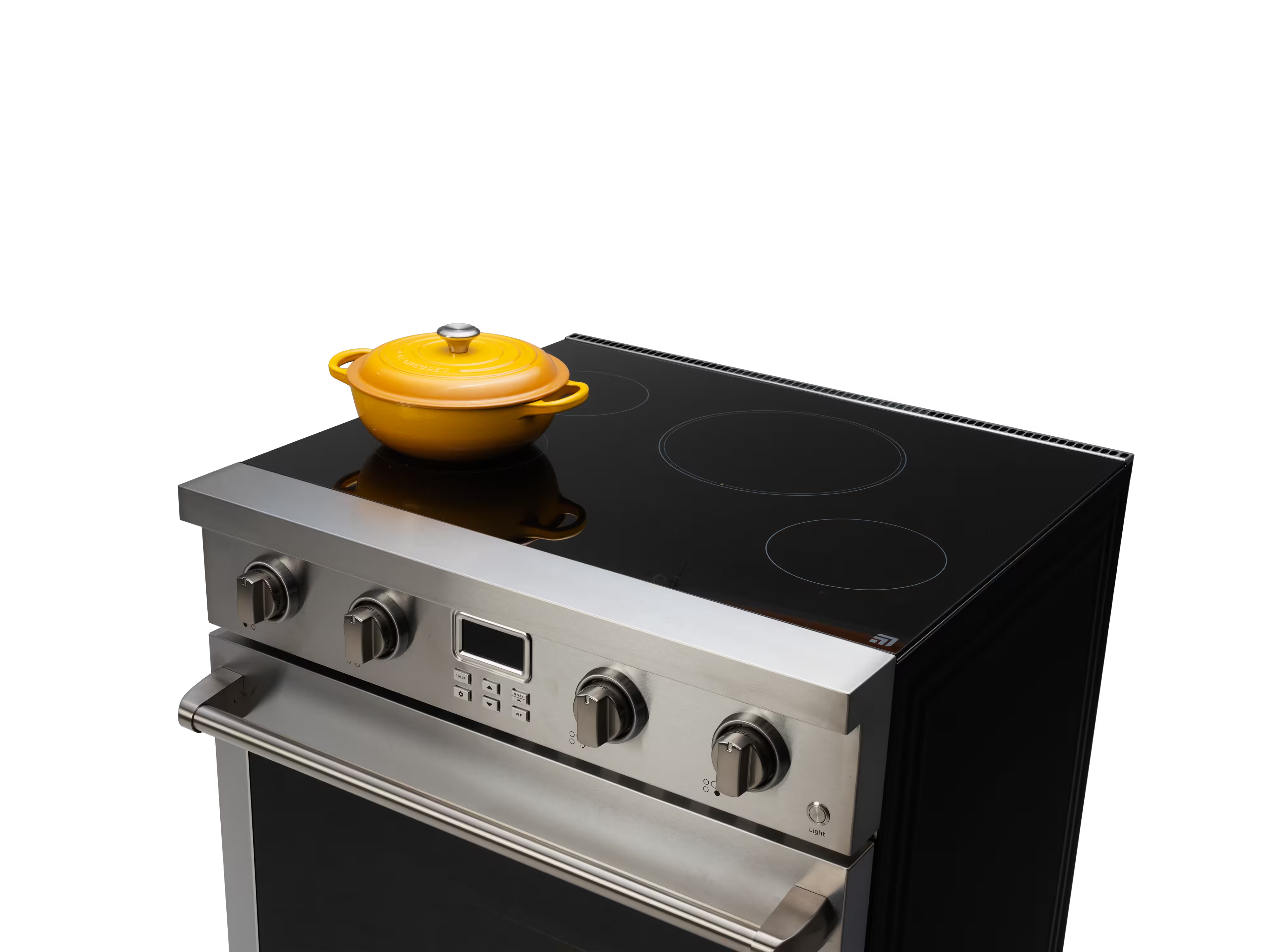
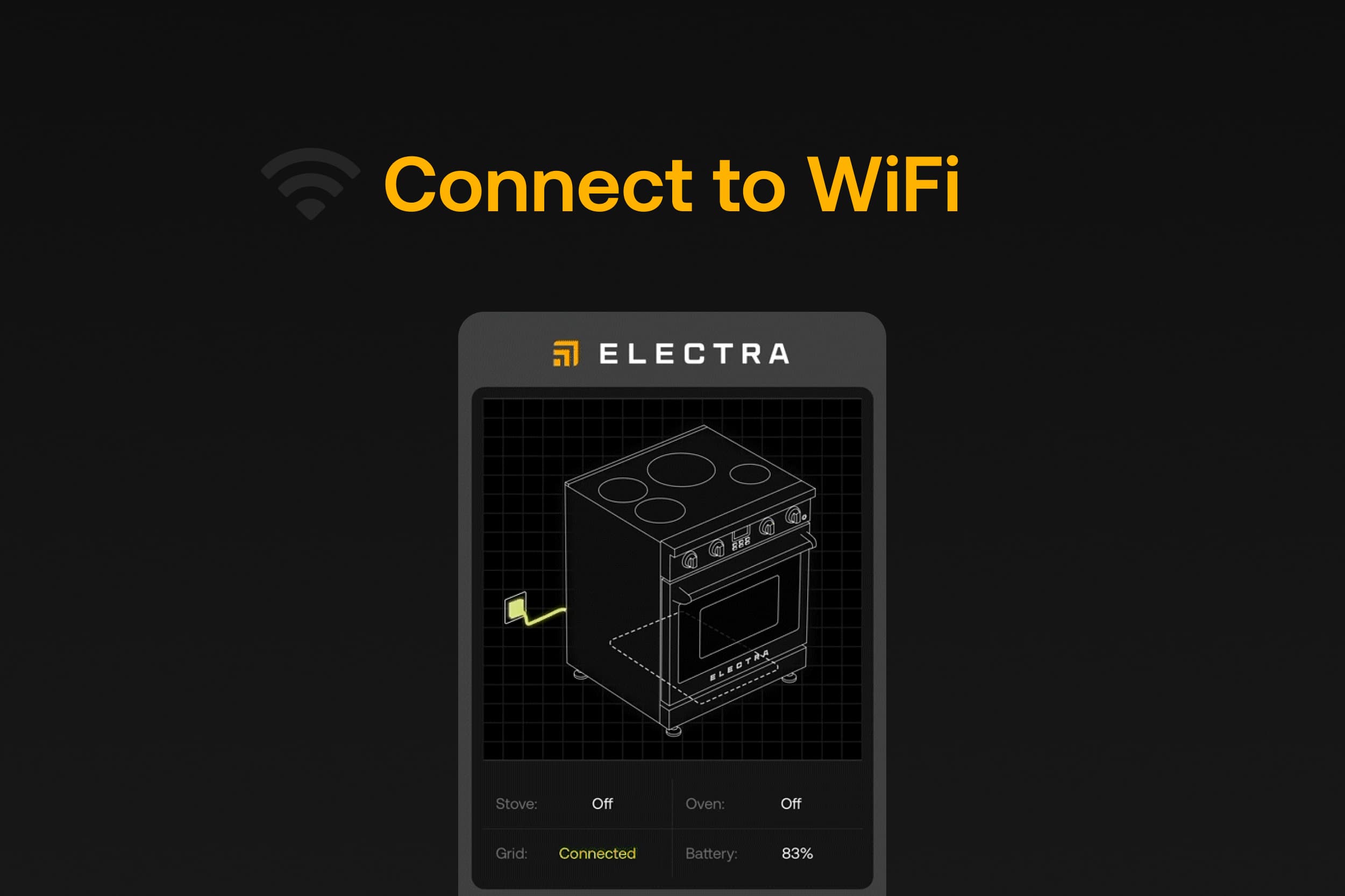
If your Electra was delivered before September 2026, follow the instructions in this video to get connected to WiFi.
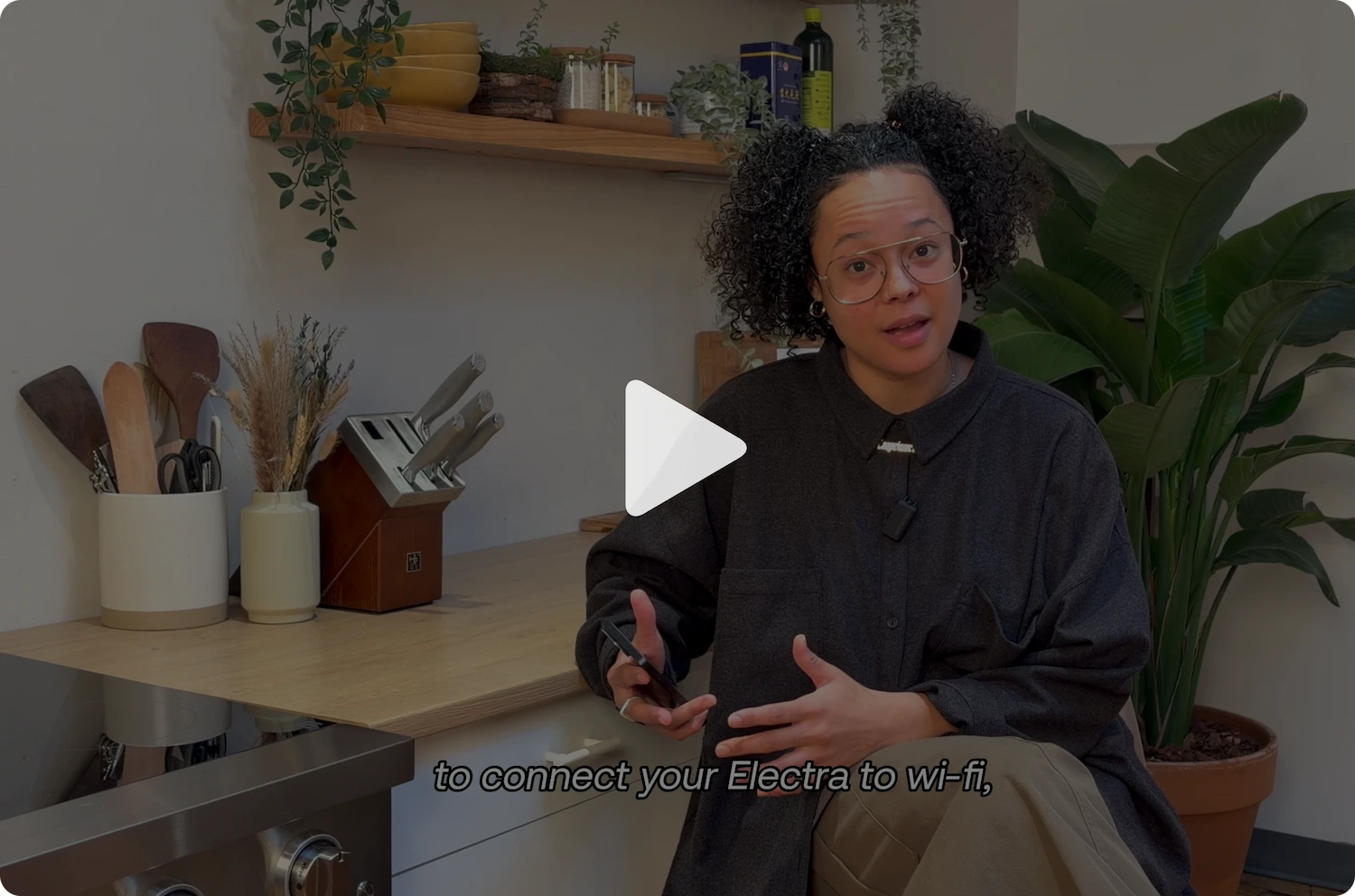
For newer stoves, follow the steps below:
When you turn on Electra for the first time, it will broadcast a setup Wi-Fi network for the first 2 hours. If you're still in that initial window, you can skip to step 3.
After the initial window, you will need to start with Step 1 and 2 to get connected.
Step 1: Locate the power switch
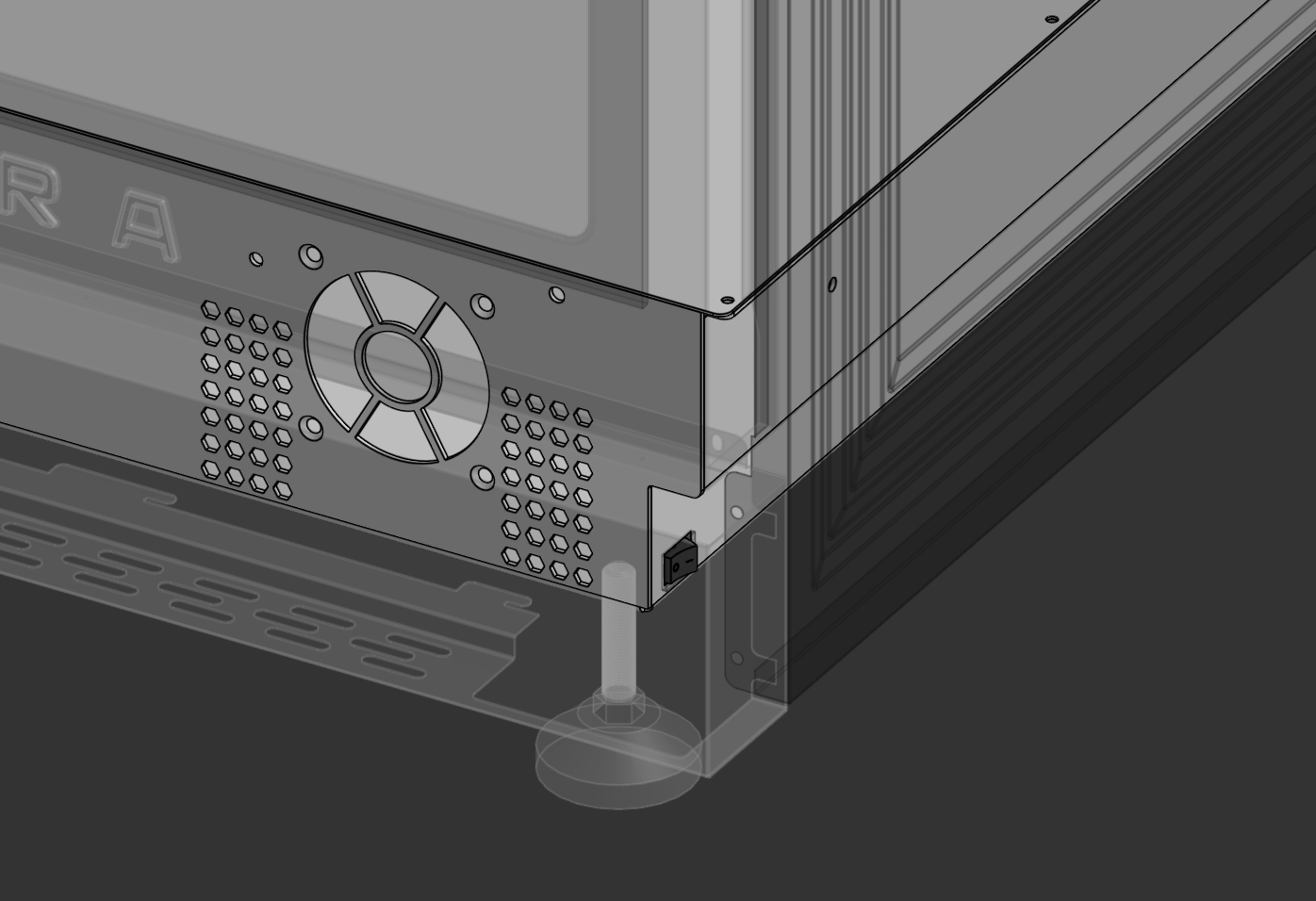
Step 2: Restart the stove
Turn your stove off. Wait 10 seconds or until you hear the battery audibly click off. After you hear the click, turn the stove back on.
Then follow these steps, which can also be found on the Quick Start Guide included with your Electra delivery.
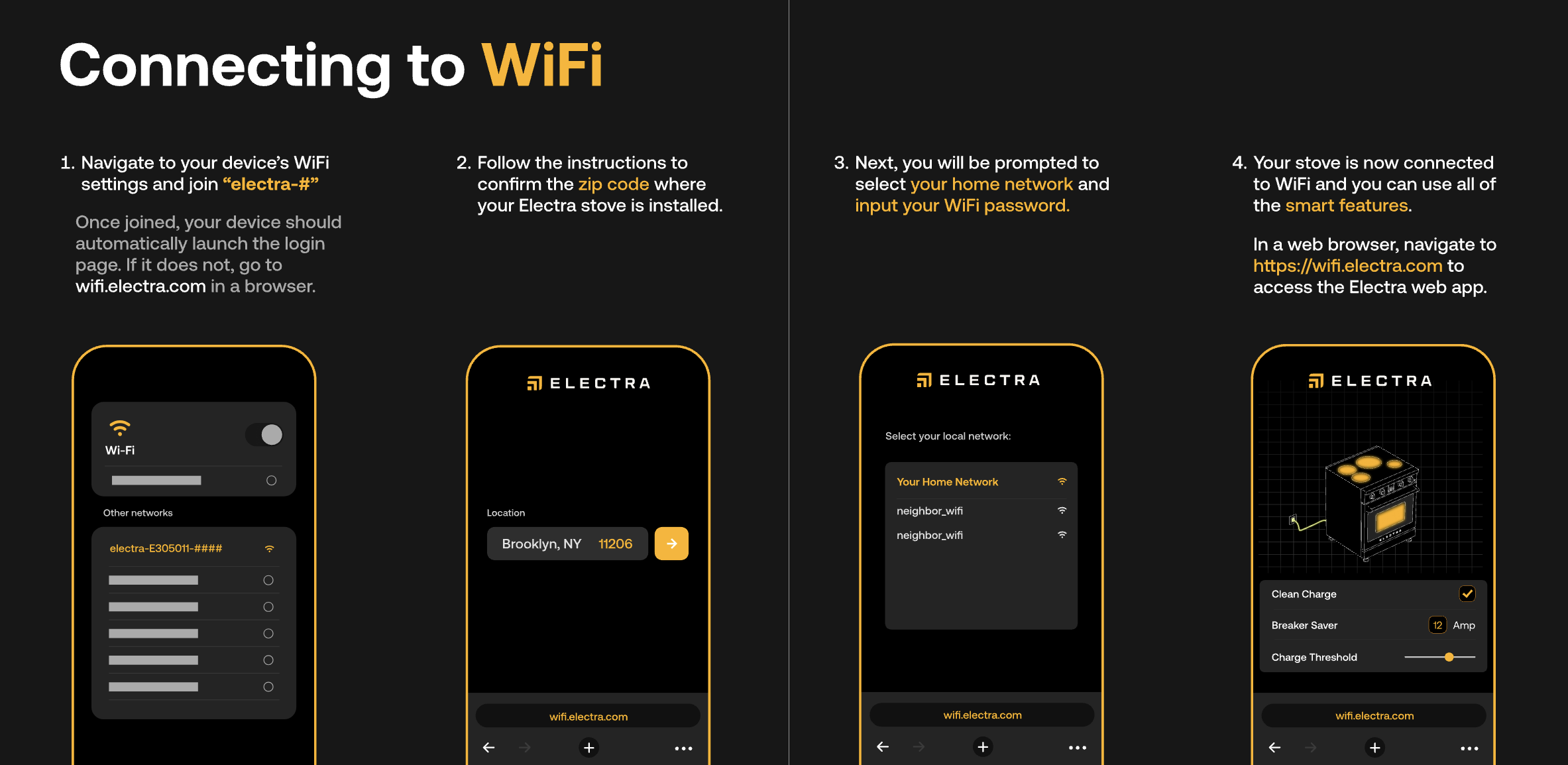
Step 3: Connecting to Wi-Fi
- Navigate to your device's Wi-Fi settings and join the network with 'electra' in the name.
- If your phone warns you that the network doesn't have internet, select "Continue without internet".
- Once joined, your device should automatically launch the login page.
- If it does not, go to wifi.electra.com or http://192.168.0.1. If you're still stuck, book a call for support with us here.
- Follow the instructions to confirm the zip code where your Electra stove is installed.
- Next, you will be prompted to select your home network and input your Wi-Fi password.
- Listen for a chime from the stove indicating if the connection was successful. If you hear a descending chime, repeat the above steps.
- Your stove is now connected to Wi-Fi and you can use all of the smart features!
- In a web browser, navigate to https://wifi.electra.com or http://electra.local to access the Electra web app.
If you’re still having trouble connecting to Wi-Fi, you can try the manual WiFi reset code below.
Reset the stove's Wi-Fi settings (aka "lamp-4-3-2-1-lamp")
1 - Reset the stove:
- Press the oven lamp button (so the light is on), turn the leftmost knob to 4 (turn it and listen for 4 beeps), the second from the left to 3, the third from the left to 2, the last from the left to 1, then press the lamp button again.
- You should hear a short song and the stove will begin broadcasting its wifi network again.
2 - Connect to the stove's Wi-Fi:
- On your phone, computer, or tablet, open Wi-Fi settings and select Electra Wi-fi Setup.
- If prompted that the network has no internet connection, select Use without internet or ignore the warning.
3 - Log in to the stove Wi-Fi network:
- Wait for the login page to pop up (like airport Wi-Fi), or navigate to http://192.168.0.1 in a web browser.
- You should see a prompt to enter your zip code.
4 - Enter your zip code and home Wi-Fi details:
- Enter your zip code and press the right arrow. You should see a list of available Wi-Fi networks again. Select your home Wi-Fi network from the list of available wifi networks.
- Enter your home Wi-Fi password (press the "eye" icon to see your password as you type it).
5 - Wait for the confirmation sound.
- Two repeating beeps: The stove is attempting to connect.
- Ascending tone: Connection successful! Your stove is now connected to your home Wi-Fi. Your device will disconnect from the stove's setup network. This is normal.
- Descending tone: Connection failed. The stove will broadcast the Electra Wi-Fi Setup network again. Double-check your home Wi-Fi password and repeat the setup steps.
6 - Connect to the Electra web app:
- Once the stove is connected to your home Wi-Fi, access the Electra web app using either address:
- https://wifi.electra.com - Any supported device connected to your home Wi-Fi, provided you are not using a VPN.
- http://electra.local - PC, Mac, and iOS devices (not Android).
Questions?
Book a call with us here.


